Supershoot

Shoot by camera spot. Get every script back in order.

An iPhone app that prompts, records and assembles your scripts, for business owners who film on their own phone.

A small room set up for a shoot day: a phone on a tripod, three taped marks on the floor, a clipboard of scripts on the desk, and three shirts folded on a chair.

You film in one order. People watch in another.

Supershoot lets you film a script's beats out of order, one camera spot at a time, and puts every script back together in order when the last spot is done.

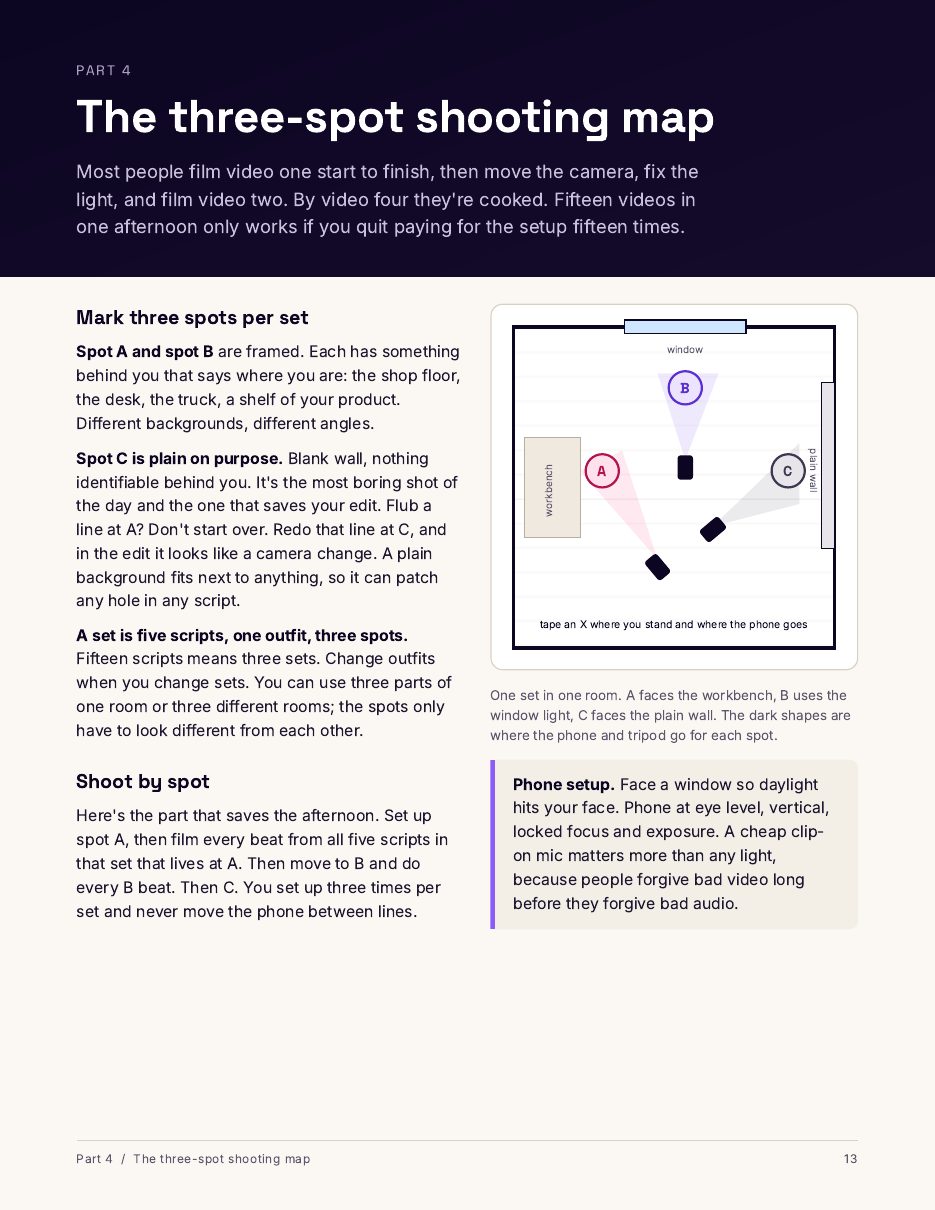
A script is a handful of beats. Filming them in order means moving the camera, the light and yourself every few sentences. So you stand at one camera spot and film every beat that lives there, across every script on the shoot. Then you move to the next spot.

That leaves a camera roll full of clips and the job of working out which one belongs where. Supershoot ties each take to its beat while you shoot. When the last spot is done, every script is ready to go back together in order.

What you film, spot by spot

  • AScript 1 beat 1, Script 1 beat 4, Script 2 beat 2
  • BScript 1 beat 3, Script 2 beat 1
  • CScript 1 beat 2, Script 2 beat 3

What you get back

  • Script 1Beat 1 from A, beat 2 from C, beat 3 from B, beat 4 from A
  • Script 2Beat 1 from B, beat 2 from A, beat 3 from C

What the app does today

Today the app imports your scripts, splits them into beats by camera spot, prompts you at the lens, records each take and assembles each script in order.

I have it running on my own iPhone. Everything in this list works in that build. The help center has the details on each part.

  1. Scripts in, beats out

    Paste a script or open a text file. The app splits it into beats and gives each one a camera spot. One shoot can hold several scripts and several locations. If your script needs tidying first, here's the format the importer reads.

  2. A prompter at the lens

    The camera runs full screen with your script in a band over the picture that you can drag. A countdown with beeps, then you read. A Bluetooth clicker or the phone's buttons start and stop each take, so your hands stay off the screen. Tap the empty camera area and the controls clear away. The prompter, the record button and a thin progress bar along the bottom edge stay.

  3. Real lenses

    The zoom buttons run on your phone's own lenses, such as 0.5, 1, 2, 4 and 8, depending on the phone. Pinch to zoom within a lens. On the front camera, one Rear camera button flips you around. A framing guide has outlines to pick from.

  4. Spot lock

    Locks exposure, white balance, focus, zoom and lens per spot, so cuts match.

  5. A mic picker with a level meter

    Pick your input in the Camera panel and watch the live level meter. A steady high tone, such as a fridge or AC whine, gets a warning.

  6. Retakes keep the last take

    Flub a line, step back one beat and say it again. The newest take of each beat is the one that counts, and the old ones stay on the phone. Reshoot any beat later, or a whole script, and keep an earlier take if you liked it better.

  7. Resume where you stopped

    The Resume tab and the Continue shoot card on Shoots put you on the next beat without a kept take, one tap from recording.

  8. A library for every take and reel

    The Recordings tab lists your shoots. Open one to see its reels and its takes, script by script and beat by beat. Finished reels stay in the shoot after you close the app. Nothing goes to Photos unless you save it there.

  9. A review player

    Play any take or reel full screen. Reels show a tick for each beat with its spot letter, and you swipe between takes. Keep an earlier take, retake the beat, save to Photos, share or delete, with a confirm before anything goes.

  10. Scripts back in order

    When every spot is done, each script is built from its kept takes in script order, with the gaps between words trimmed.

  11. Captions from what you said

    Captions are off until you turn them on, with four styles: Bold, Clean, Yellow and Boxed. Words that match your script take its spelling, capitalization and punctuation, and ad-libs are still captioned as heard. Timed by speech recognition on the phone. English (US) only today.

  12. Export that matches your takes

    Reels come out in the shape and frame rate you shot: vertical, or horizontal on supported iPhones. 1080p by default, 4K when every take is 4K.

  13. A clip editor, and files for your editor

    Open a reel's clips in the clip editor. Or export your takes to Files, named by script, beat and spot, or prepare an FCPXML package for the editor you already use.

Coming later

  • Editing beats and words after you import a script.
  • A ghost frame from your last take, to match your framing when you come back to a spot.
  • A public TestFlight beta, then the App Store.

On the phone

Three screens show the app today: the Shoots home, a shoot in Recordings and the review player. They are from the current build, captured in the iOS simulator with demo data. The simulator has no camera, so the video frames show a placeholder gradient. The camera view itself needs a real phone, so it is not shown yet.

Supershoot Shoots tab with a Continue shoot card for a Neighborhood Plumber shoot at 6 of 36 beats kept, and three folder tiles below it
Shoots home: the Continue shoot card puts you back on the next beat, with your folders below.
Supershoot page for one shoot with its assembled reel, then takes grouped by script, a Reshoot button on each beat and a count of earlier takes
One shoot in Recordings: the reel, then every take script by script, with Reshoot on each beat.
Supershoot review player on a reel, with a tick for each beat labelled by its spot letter, plus captions, mute, Edit clips, Save to Photos, Share and Delete
The review player on a reel, with a tick for each beat and its spot letter.

Questions

What is Supershoot?

Supershoot is an iPhone teleprompter app that records each beat of your script as its own clip and assembles your scripts back together in order. It is built for business owners who film on their own phone, and it runs on iPhone only, on iOS 26.0 or later.

Who is Supershoot for?

Business owners who film their own videos on their own phone. It suits anyone who wants to shoot several short scripts in one sitting, because the app arranges the shoot by camera spot.

How does shooting by spot work?

You stand at one camera spot and film every beat that lives there, across every script on the shoot, then move to the next spot. The app splits each script into beats, gives each beat a spot, ties every take to its beat as you film, and builds each script from your kept takes when the last spot is done.

Is Supershoot out yet?

Not yet. It is in testing and it is not on the App Store. A public TestFlight beta comes first, then the App Store, and there is no launch date. Join the waitlist and I will email you when the app opens to testers.

What will Supershoot cost?

Pricing has not been announced. It gets announced at launch. Everyone who buys the One-Day Shoot Script Kit gets their first month of Supershoot free when the app launches.

Do I need the kit to use Supershoot?

No. The kit and the app are separate products. The guide, the prompts, the template and the planning sheet all work without the app, and the app does not need the kit. More answers are in the help center.

Get on the list.

I will email you when the app opens to testers. Pricing gets announced at launch.

A page from the kit: a floor plan of three camera spots in one room.

Use the method today.Start with the method.

The One-Day Shoot Script Kit is the written version of everything above: the script template, the three-spot shooting map and the shoot day checklist I run for paying clients. It is $47 with an instant download.It launches at $47, and the kit page lets you leave your email to hear the day it goes on sale.

Everyone who buys the kit gets their first month of Supershoot free when the app launches.

See the kit